
GPS Data
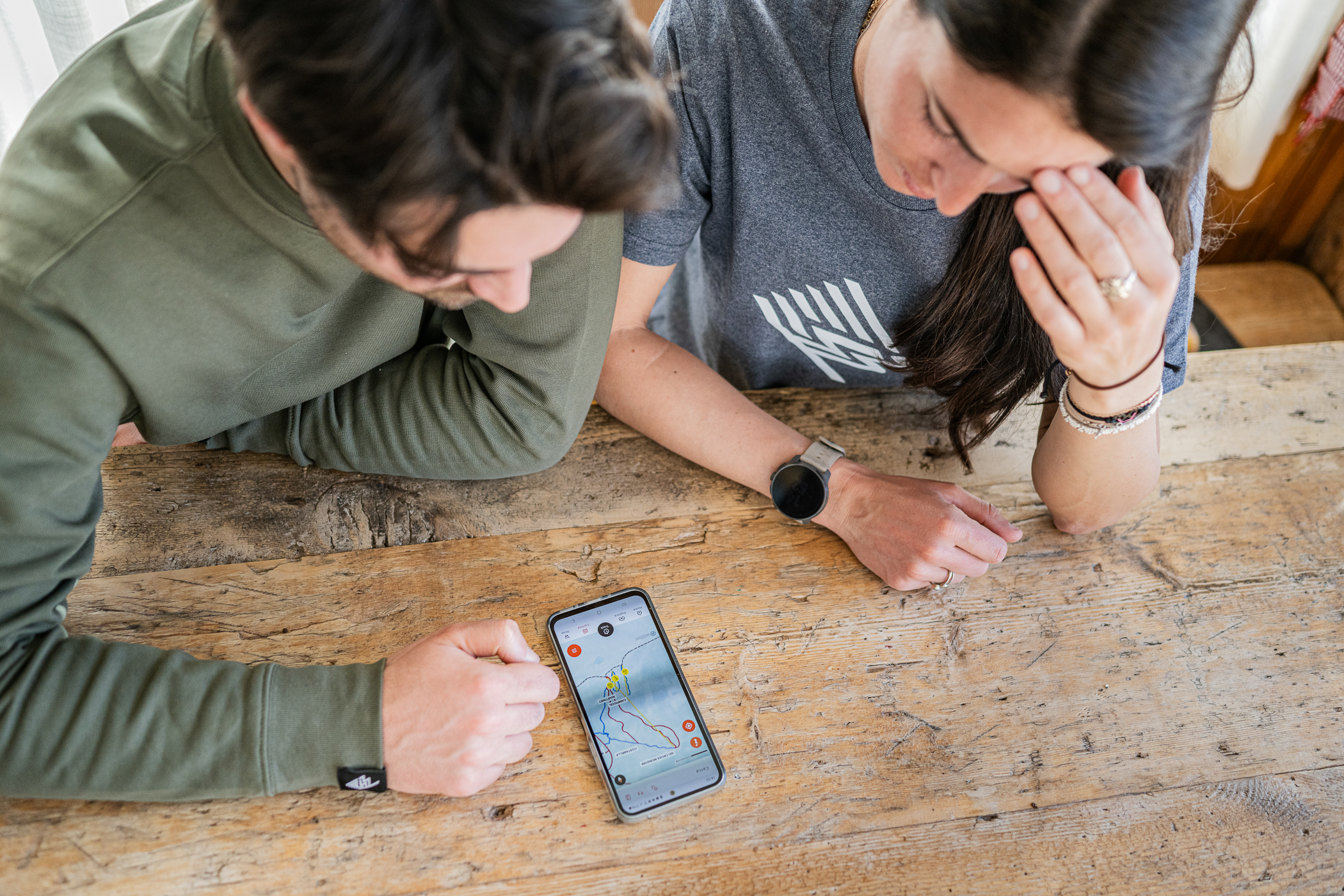
When recording your ski runs, GPS data accuracy is essential for a faithful report of your performance, such as maximum speed, distance covered, and descent tracks. Inaccurate data can ruin the memory of a day on the snow. This article explains why these errors occur and how you can prevent them.
Common examples of inaccurate GPS data on the slopes
When your device’s GPS is not working correctly, the recorded track can be very different from reality. The system cannot “invent” missing data, so it simply connects the points it manages to record with a straight line.
- GPS Drift: The recorded track deviates from the run you actually followed. You might see your line passing through woods, rocks, or huts, even if you stayed on the groomed trail the whole time.
- GPS signal loss: If the signal is lost (for example, while you are in a gondola or a mountain hut) and is re-acquired only later, the app will draw a straight line between the last recorded point and the new one. This can cut off entire sections of your run or create absurd lines crossing the mountain.
- GPS Bounce: In the mountains, especially in narrow valleys or near rock faces, the GPS signal can “bounce” off these surfaces before reaching your phone. This creates a very jagged “zig-zag” track, which can result in a much higher distance traveled and average speed than actual.
Do not be surprised if your device, despite being in the same place and with the same settings, works perfectly one day and not the next. To calculate a precise position, signals from at least 5 satellites are needed. Their position in orbit, weather, and atmospheric conditions are variables beyond our control that can cause inconsistent performance. It is therefore difficult to establish the cause of a problem with certainty. Our advice is to do several tests before evaluating your device’s GPS performance.
How ski data is calculated
The application calculates total distance (and consequently speed) by summing the lengths of the straight lines connecting each recorded GPS point. If the points are inaccurate due to one of the problems described above, the final calculation will inevitably be wrong. We have developed algorithms that try to clean up a “dirty” track as much as possible, but the results are not always perfect. This is why ensuring a good recording from the start is crucial.
How to prevent inaccurate GPS data in the mountains
The main cause of errors is a weak connection with GPS satellites. Here are some specific tips for the ski environment:
- Wait for a strong signal before starting. At the start of a lift or at the top of a chairlift, open the app and wait a minute before starting your descent. Even if the app says “Signal Acquired”, giving the device a few extra seconds allows it to establish a more solid connection with a greater number of satellites.
- Phone placement matters. Avoid keeping your phone in an inside pocket or at the bottom of a full backpack. The best position is an external jacket pocket, as high up as possible and away from other electronic devices.
- Beware of battery saving. Cold drastically reduces battery life. Many phones automatically activate power-saving modes at low temperatures, which can limit GPS frequency and accuracy. Disable these modes before you start skiing (consult our specific guides for Android and iOS).
- Turn off Wi-Fi. When you are on the slopes, turn off your phone’s Wi-Fi. The continuous attempt to connect to hut or hotel networks can interfere with the GPS signal and drain battery unnecessarily.
Problems with the GPS on iOS devices
When problems like those described below occur, your activity recording may be inaccurate, showing a distance and path that do not match reality. ‘Dirty’ or anomalous GPS data, such as tracking gaps or sudden position jumps, compromise recording reliability. The system cannot accurately reconstruct missing sections and is limited to connecting points with straight lines. It is therefore essential to act preventatively to ensure clean data collection from the start. This guide will help you solve the most common problems to obtain accurate tracking.
- GPS drift: The GPS track differs from the skied path.
- GPS signal loss: If the GPS signal is lost and re-acquired some time later, the points before the signal loss and after its re-acquisition will be treated as any two points (even though more time has passed between them) and connected with a straight line.
- GPS bounce: A “jumpy” GPS track can cause your activity to record a greater distance than actually traveled, because every “zig” and “zag” of your GPS track must be calculated with a straight line connecting them.
- Turn your phone off and on again.
- Turn location services off and on again.
- Close all other open applications before recording and, if you open another app during your activity, return to My Dolomiti immediately after.
- Make sure your phone is not connected to a WiFi network when you start your activity.
- Open My Dolomiti when you have a clear, unobstructed view of the sky and wait a few minutes longer than usual before starting your activity, even if you see a message saying “GPS Signal Acquired”.
Perform a GPS reset:
- Swipe up from the bottom of the screen and hold until you see the app switcher.
- Next, go to settings and turn on airplane mode.
- Once done, go to Settings > General > Transfer or Reset iPhone > Reset and choose Reset Network Settings (you will need to re-enter your WiFi passwords!).
- Once the phone has restarted, go to Settings > Privacy & Security > Location Services, turn them off and then on again.
- Then go to Settings > Privacy & Security > Location Services > System Services and turn off the time zone setting.
- Try using the My Dolomiti app to record a track for 10 minutes, letting it search for signals with a completely open view of the sky and keeping it stationary. If this does not produce a clean track, check if GPS works in other apps (do not use Google Maps). Navigation apps use cell towers to “snap” your position to known roads and trails, which can give the illusion that your GPS is working perfectly.
Try running one of the free apps that present detailed information on GPS operation. You should see it report the acquisition of 5 or more satellites and an overall accuracy radius of less than 30 meters if everything is working correctly
Problems with the GPS on Android devices
When problems like those described below occur, your activity recording may be inaccurate, showing a distance and path that do not match reality. ‘Dirty’ or anomalous GPS data, such as tracking gaps or sudden position jumps, compromise recording reliability. The system cannot accurately reconstruct missing sections and is limited to connecting points with straight lines. It is therefore essential to act preventatively to ensure clean data collection from the start. This guide will help you solve the most common problems to obtain accurate tracking.
- GPS drift: The GPS track differs from the skied path.
- GPS signal loss: If the GPS signal is lost and re-acquired some time later, the points before the signal loss and after its re-acquisition will be treated as any two points (even though more time has passed between them) and connected with a straight line.
- GPS bounce: A “jumpy” GPS track can cause your activity to record a greater distance than actually traveled, because every “zig” and “zag” of your GPS track must be calculated with a straight line connecting them.
- Turn your phone off and on again.
- Turn GPS off and on again.
- Ensure you have given the My Dolomiti app permission to use your location.
- Go to Settings > Apps > My Dolomiti > Permissions > Location and make sure it is set to “Allow all the time”.
- Verify that you have allowed access to “Precise location” and allow GPS access in the background.
- Disable any battery saving settings. This includes Power Saving Mode, Battery Management, Optimization, or any third-party apps. Below is more information for specific devices with Android 6 or later versions:
- HTC: Settings > Power > Battery optimization > Not optimized > All apps > My Dolomiti > Don't optimize > Done.
- Huawei: Set “Power saving modes” to “Normal” and add My Dolomiti to “Protected apps”. Settings > Apps & notifications > Apps > Settings > Special access > Ignore battery optimization > All apps > My Dolomiti > Allow.
- LG: Settings > Battery & power saving > Battery usage > Ignore optimizations > Turn on for My Dolomiti.
- Motorola: Settings > Battery > select the menu in the upper right corner > Battery optimization > Not optimized > All apps > My Dolomiti > Don't optimize.
- OnePlus (with OxygenOS): Settings > Battery > Battery optimization > select the menu at the top > switch to "All apps" list > My Dolomiti > Don't optimize.
- Samsung: Settings > Apps > select the menu in the upper right corner > Special access > Optimize battery usage > All apps > Turn off the toggle for My Dolomiti.
- Sony: Settings > Battery > select the menu in the upper right corner > Battery optimization > Apps > My Dolomiti.
- Xiaomi (MIUI OS):
- Settings > Additional settings > Battery & performance > Manage apps battery usage > Apps > My Dolomiti.
- Settings > Additional settings > Privacy > Location > make sure you use "High accuracy" for location mode and allow location access.
- Check that location settings are set to “High accuracy”.
- Settings > Connections > Location > Locating method > High accuracy.
- Perform an “AGPS reset”.
- Install the “GPS Status & Toolbox” app.
- Inside the app, go to Menu > Manage A-GPS state > Reset.
- Try using the My Dolomiti app to record a track for 10 minutes, letting it search for signals with a completely open view of the sky and keeping it stationary. If this does not produce a clean track, check if GPS works in other apps (do not use Google Maps). Navigation apps use cell towers to “snap” your position to known roads and trails, which can give the illusion that your GPS is working perfectly.
- Try running one of the free apps that present detailed information on GPS operation. You should see it report the acquisition of 5 or more satellites and an overall accuracy radius of less than 30 meters if everything is working correctly.


